Using Click to Pay with Branches
Branch‑specific Click to Pay settings let your organization control how payment links, receipts, and notifications behave for each store branch.
When branch settings are configured, EPASS automatically uses them. If a branch does not have its own Click to Pay settings, EPASS falls back to the company‑wide (global) configuration. This applies across all Click to Pay functions, including generating payment links, sending notifications, and creating receipts.
Configuring Click to Pay for a branch gives you:
- Branch-specific Click to Pay payments.
- Branch‑specific email and text notifications.
- Clearer payment receipts.
- Better control over who gets notified about payments.
When to Use Branch-Specific Click to Pay
Configure Click to Pay for each branch when:
- You want to apply online payments to a specific branch.
- Different branches need to use different Payment Type codes for Click to Pay.
- You want payment notifications sent only to EPASS Users that belong to a specific branch.
- You need payment receipts to include the branch information, such as name or location.
- When some branches allow Click to Pay, and some do not.
Before Starting
- You'll need to contact EPASS Support to configure Click to Pay profiles for each of your branches. You may also want to request additional Merchant IDs as well.
- We recommend that Click to Pay is configured and working company-wide before configuring each branch, and that you are familiar with the global Click to Pay configuration process.
Configuring Click to Pay for a Branch
There are two tabs in the Branch table that you need to configure: Click to Pay (CTP) and CTP Notifications. (Go to Tools > System Maintenance > Tables > Branch > Payment Proc.) These tabs control Click to Pay profile details and notifications at the Branch level.
Click to Pay (CTP) tab
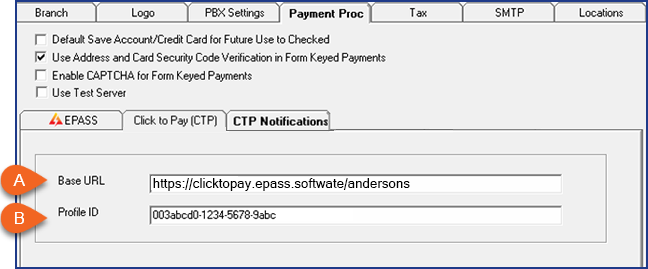
| A | Enter the URL address where the branch's Click to Pay page is hosted. |
| B | Enter the branch's Click to Pay Profile ID. |
CTP Notifications tab
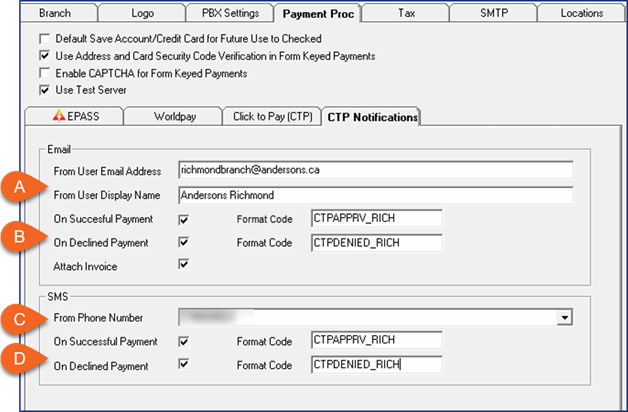
| Field | Description |
|---|---|
| A | Enter the branch address and display name for outgoing email notifications. |
| B | Select when an email should be sent (when a payment has been successfully made and when a payment has been declined). You can also choose to send an attached copy of the invoice. |
| C | Enter the branch phone number for outgoing text notifications. |
| D | Select when a text should be sent (when a payment has been successfully made and when a payment has been declined). |
For more information on sending text and email Click to Pay Notifications, see Sending Text and Email Notifications to Customers.
Generating Payment Links
When a payment link is generated, the following occurs:
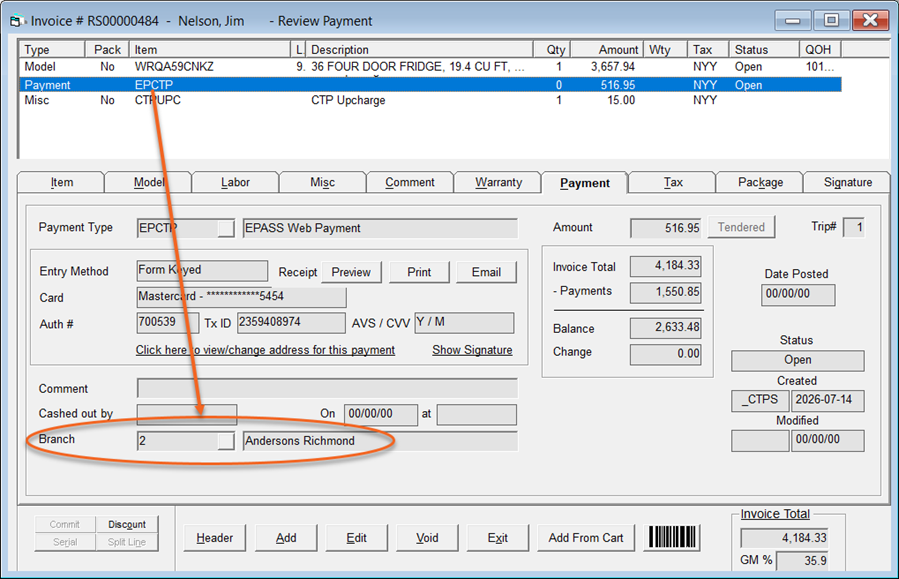
- EPASS checks the branch that owns the invoice (not the branch that you are logged into).
- If that branch has Click to Pay settings configured, those settings are used. When payment is completed, it's applied to that branch.
- If not, EPASS uses the global Click to Pay settings.
A Click to Pay link is generated from an invoice that belongs to the Richmond branch of Andersons Appliances (Branch 2). This branch has its own Click to Pay profile and settings configured. The Click to Pay link is sent to the customer for payment. The customer makes the payment, and a "payment received" email from Andersons Richmond is sent to the customer. The Sales Manager at Branch 2 is alerted of the successful payment. On the invoice, the payment is applied to Branch 2.
Click to Pay Messaging
Click to Pay messages and notifications sent through the EPASS Messaging System can be set to specific branches or to all branches.
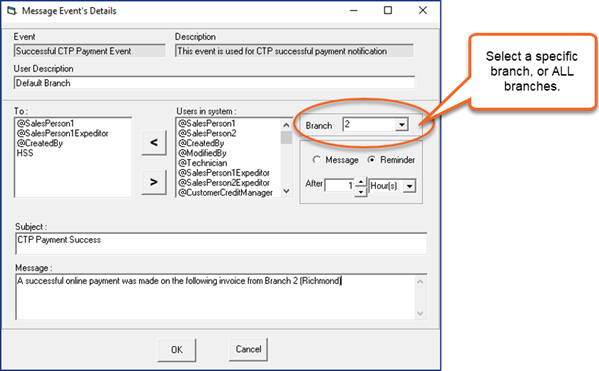
- If a message event is set to ALL branches, Users are notified for every Click To Pay payment.
- If a message event is set to a specific branch, Users are notified for Click to Payments from that branch only.
- A User can receive multiple message notifications if they are included in more than one event.
Notifications are not affected by the branch that the User is logged into.
To create additional Click to Pay event messages for different branches, click an event message, and then click Duplicate. This creates an exact copy of the original. Edit the Details of the copy, such as the recipients and Branch, as necessary.
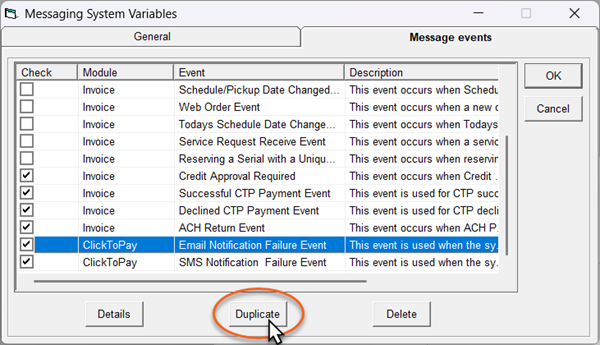
See Configure Click to Pay Messaging for more information.
Text and Email Notifications for Customers
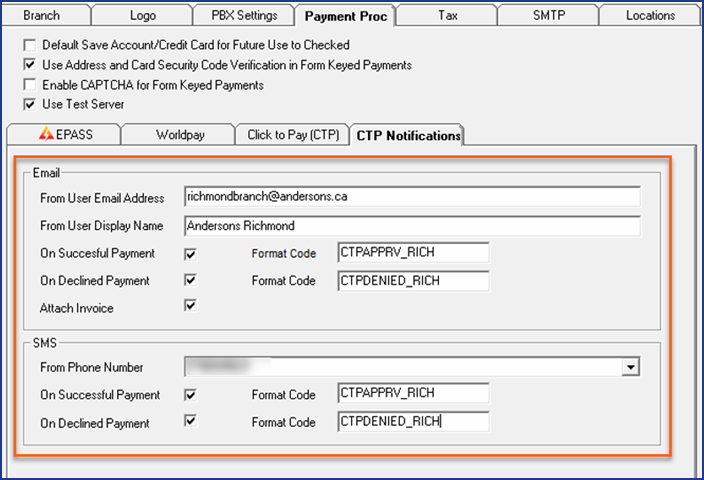
EPASS applies the same branch-first rule to email and text notifications to customers.
-
If the branch has the settings set in the CTP Notifications tab, those settings are used.
-
If not, EPASS uses the global settings in EPASS Pay Variables. (Tools > System > Variables > EPASS Pay > CTP Notifications.)
-
If any information is missing from the branch CTP notifications tab (email, phone number) then EPASS uses the information in EPASS Pay variables instead.
The branch has the email fields set in the CTP Notifications tab, but the SMS section is blank. Emails are sent using the branch email settings, and text messages use the global SMS settings in EPASS Pay Variables.
See Sending Text and Email Notifications to Customers for more information.
Email and Text Formats
You can create personalized email and text messages for each branch that are sent to customers instead of the default message templates.
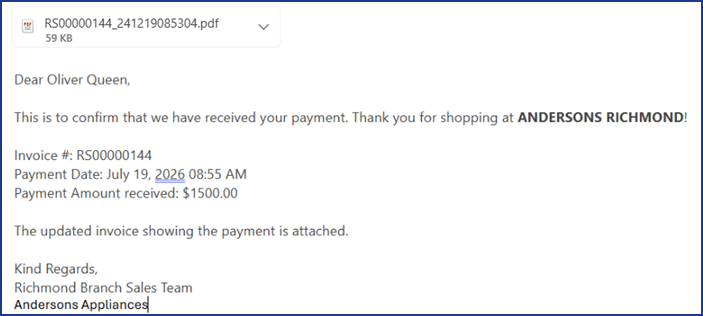
To Create a Personalized Email or Text Message Template
-
Go to Tools > System Maintenance. On the Tables tab, click Email Format or Text Format, and then click Open.
-
Click Add.
-
Enter a name for the new message template in the Code field.
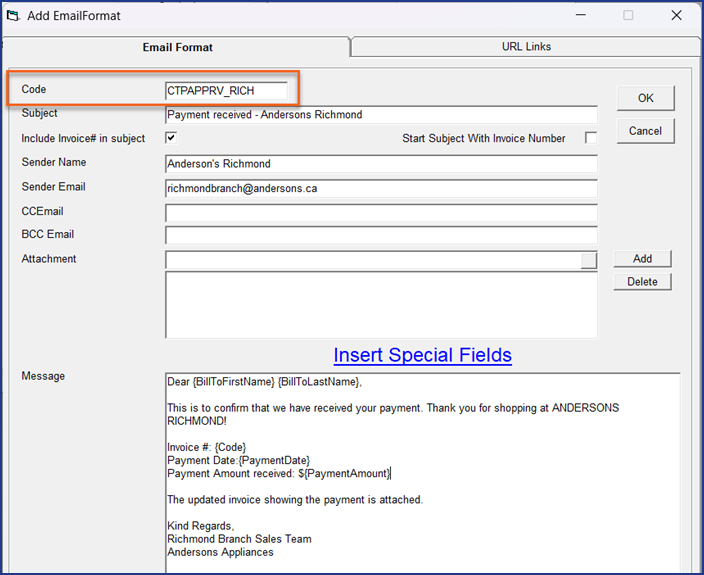
-
Customize the email properties or message as needed. View Batch Email & Text for additional information on customizing email messages.
-
Click OK to save the template.
-
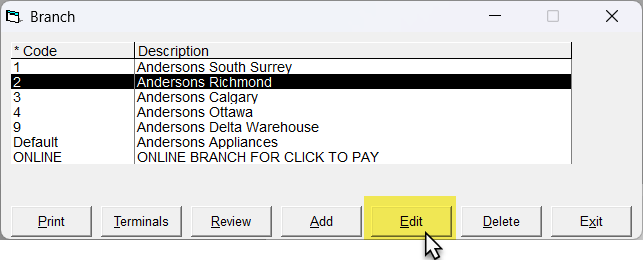
Go to Tools > System Maintenance. On the Tables tab, click Branch, and then click Open.
-
Select the branch, and then click Edit.
-
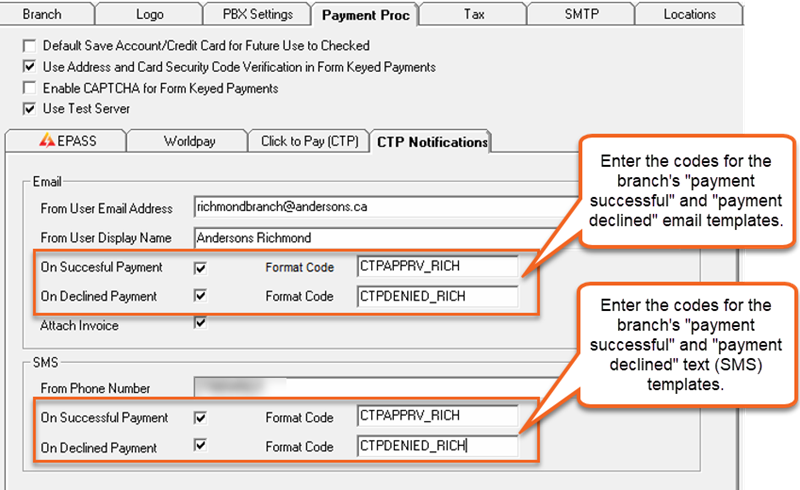
Click the Payment Proc tab, and then click CTP Notifications.
-
Enter the template code in the appropriate Format Code field.
-
Click OK.
-
Repeat steps 2–10 for additional templates and branches.
July 14, 2026